Guest feedback & reviews
What it's for
Feedback collects the ratings and reviews your guests leave, so you can see what they think, reply to them, and show your best reviews to future customers. Reviews from paid orders are marked verified, so you know they're real.
Where to find it
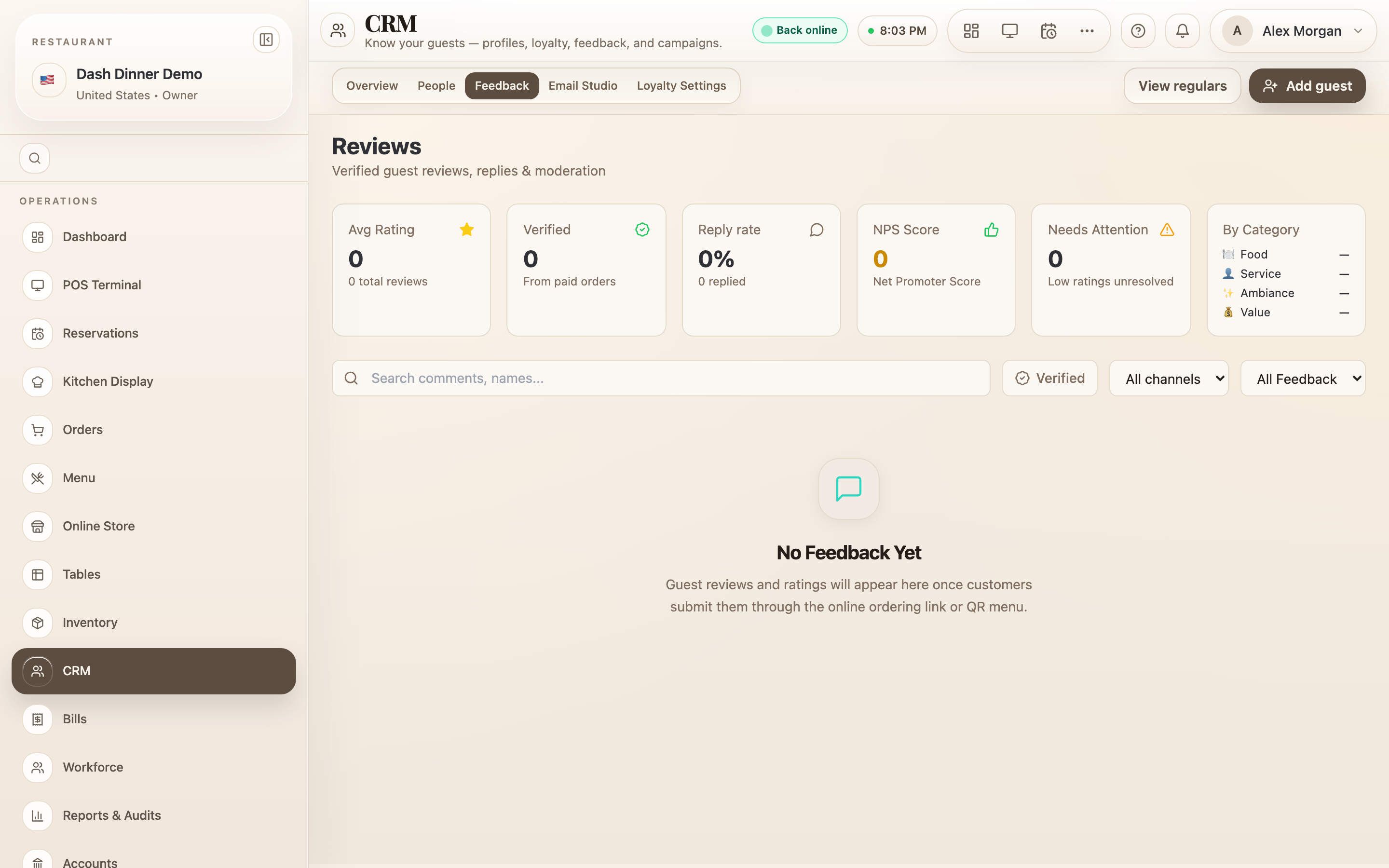
Choose Feedback in the sidebar — it opens the Feedback tab in the CRM, headed Reviews. (It's a paid feature; if you don't see it, it's on a higher plan.)
Reading feedback
Summary cards across the top: Avg Rating, Verified, Reply rate, NPS Score, Needs Attention (low ratings not yet handled), and By Category — plus a Rating Distribution bar from 5 stars down to 1.
Each review shows the overall rating (a colour-coded score and stars), the guest's name, a Verified badge when it's from a paid order, the channel it came through (Online, QR menu, SMS, or Manual), the order number and date, per-category ratings (Food, Service, Ambiance, Value), the comment, and any auto-tags (like Great Food or Slow Service).
Finding reviews
- Search with "Search comments, names…".
- Toggle Verified to show only reviews from paid orders.
- Filter by channel (All channels, Online, QR menu, SMS, Manual) and by status (All Feedback, Unresolved, Resolved).
Reply to a review
On an unresolved review, choose Respond, type your reply in "Type your response…", and send it. Your reply is saved as the Owner Response shown with the review, and the review is marked resolved.
Show or hide reviews on your storefront
On a verified review, a Shown / Hidden toggle controls whether it appears on your public online store. Use it to feature your best reviews and keep the rest private. (Publishing verified reviews to the storefront is a Pro feature; hiding one is always available.)
Where feedback comes from
Guests leave feedback themselves — through your online ordering link or QR menu after an order. You don't add reviews by hand, and there's no "request feedback" button here; the review flows in when a guest submits it, and links to their order for the verified badge.
Worked example
Answer an unhappy guest. Filter to Unresolved and sort out the low scores under Needs Attention. On a 2-star review about a cold dish, choose Respond, apologise and offer to make it right, and send — it's now resolved, with your reply on the record. Feature a glowing verified review by switching it to Shown.
Tips & things to watch
- ✅ Clear the Needs Attention count — replying to low scores turns a bad night into a recovered guest.
- ✅ Show your best verified reviews on the storefront to win new customers.
- ⚠️ Reviews come from guests only — encourage them via your QR menu and online store; you can't post reviews yourself.