Guest profiles & timeline
What it's for
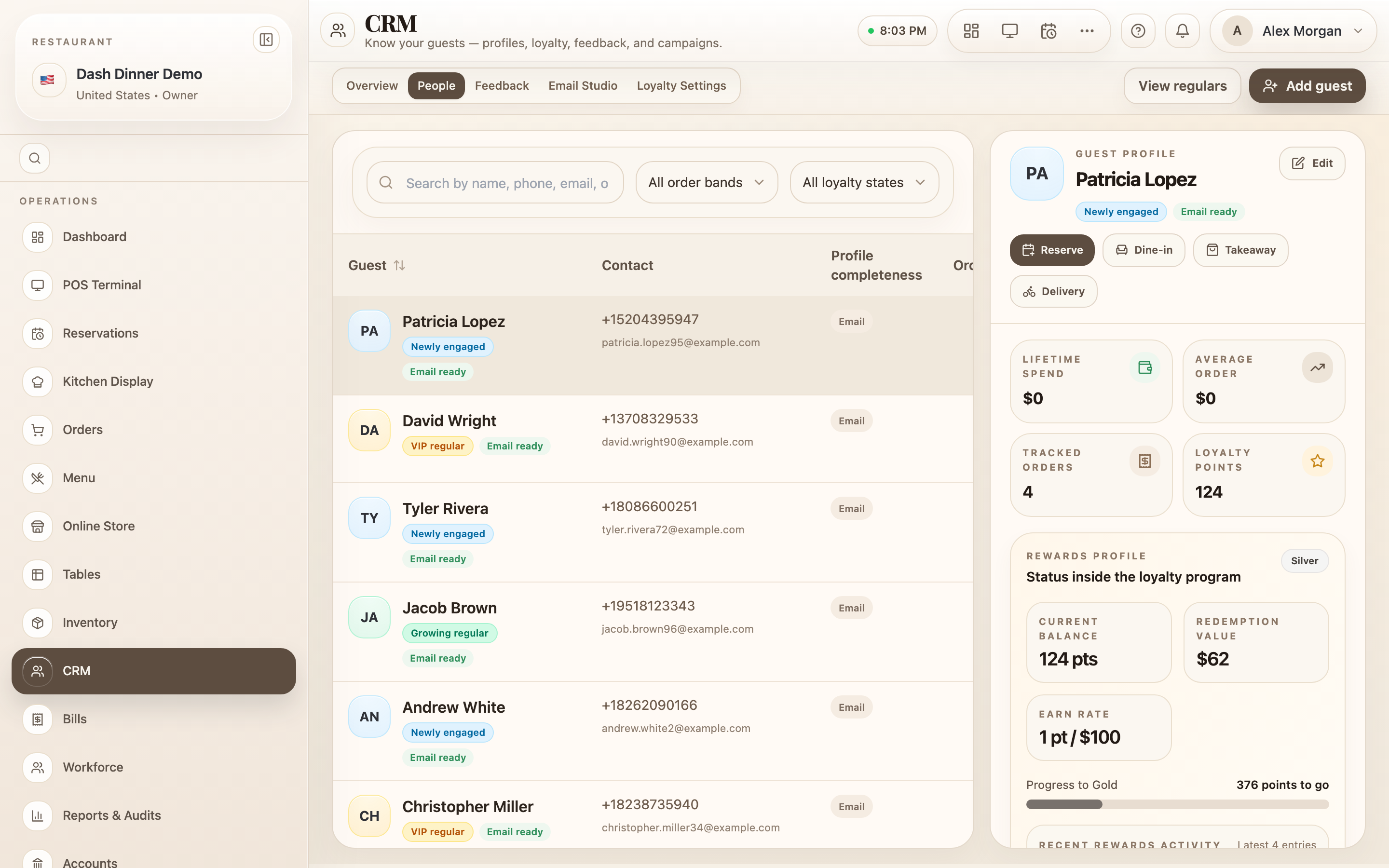
A guest's profile is their whole relationship with you in one place — contact details, spend, loyalty, and a timeline of every visit, booking, and review. You can also start a new order or reservation for them right from here.
Where to find it
On the CRM People tab, click a guest in the table. Their profile opens in the Guest profile panel on the right.
Start a transaction for them
At the top of the profile, four buttons begin a new transaction carrying the guest's details:
- Reserve — opens a new reservation pre-filled with the guest.
- Dine-in, Takeaway, and Delivery — hand the guest to the POS to start that kind of order.
So you never re-type a regular's details — pick them in the CRM and go straight to booking or ordering.
What the profile shows
- Stat tiles: Lifetime spend, Average order, Tracked orders, and Loyalty points.
- Rewards profile — their tier, current points balance, redemption value, earn rate, progress to the next tier, and recent earn/redeem activity.
- Contact and identity — phone, email, last visit, birthday.
- Preferences and capture quality — email permission and dietary or service notes.
- Address book — delivery/primary and billing addresses.
- Relationship timeline — a merged feed of orders, bookings, feedback, and campaign touchpoints, newest first (with "Show more" to expand).
Edit a guest
Choose Edit (the pencil) to reopen the profile form and update any detail — including their notes and preferences. (Notes are edited here in the form, not added inline on the panel.)
A guest's phone stays locked once their profile exists, so their history always links to the same person.
Worked example
A regular calls to book. On the People tab, search their name, open their profile, and choose Reserve. The booking form opens already filled with their name and phone — set the date, time, and party, and confirm. It's logged against their profile and appears on their Relationship timeline.
Tips & things to watch
- ✅ Use the launcher buttons to turn a known guest into a booking or order in one step.
- ✅ Check the timeline before a VIP arrives — you'll see their last visits and any feedback.
- ⚠️ Edit notes via the profile form (the pencil) — there's no separate quick-note button on the panel.