Log in and set up
What it's for
Signing in connects you to your restaurant's live data — its menu, tables, orders, and staff. Managers and owners sign in with an email and password; staff can sign in quickly at the counter with a PIN.
Where to find it
- Web
- iOS
- Android
Open app.dashdinner.com in your browser. The login screen appears first.
Open the DashDinner app from your home screen.
Open the DashDinner app from your app drawer.
Walkthrough
- Web
- iOS
- Android
- Enter your email and password, then choose Sign in.
- On a shared terminal, staff can tap PIN login and enter their 4-digit PIN.
- You land on the dashboard. The left sidebar is your map to every part of the product.
Web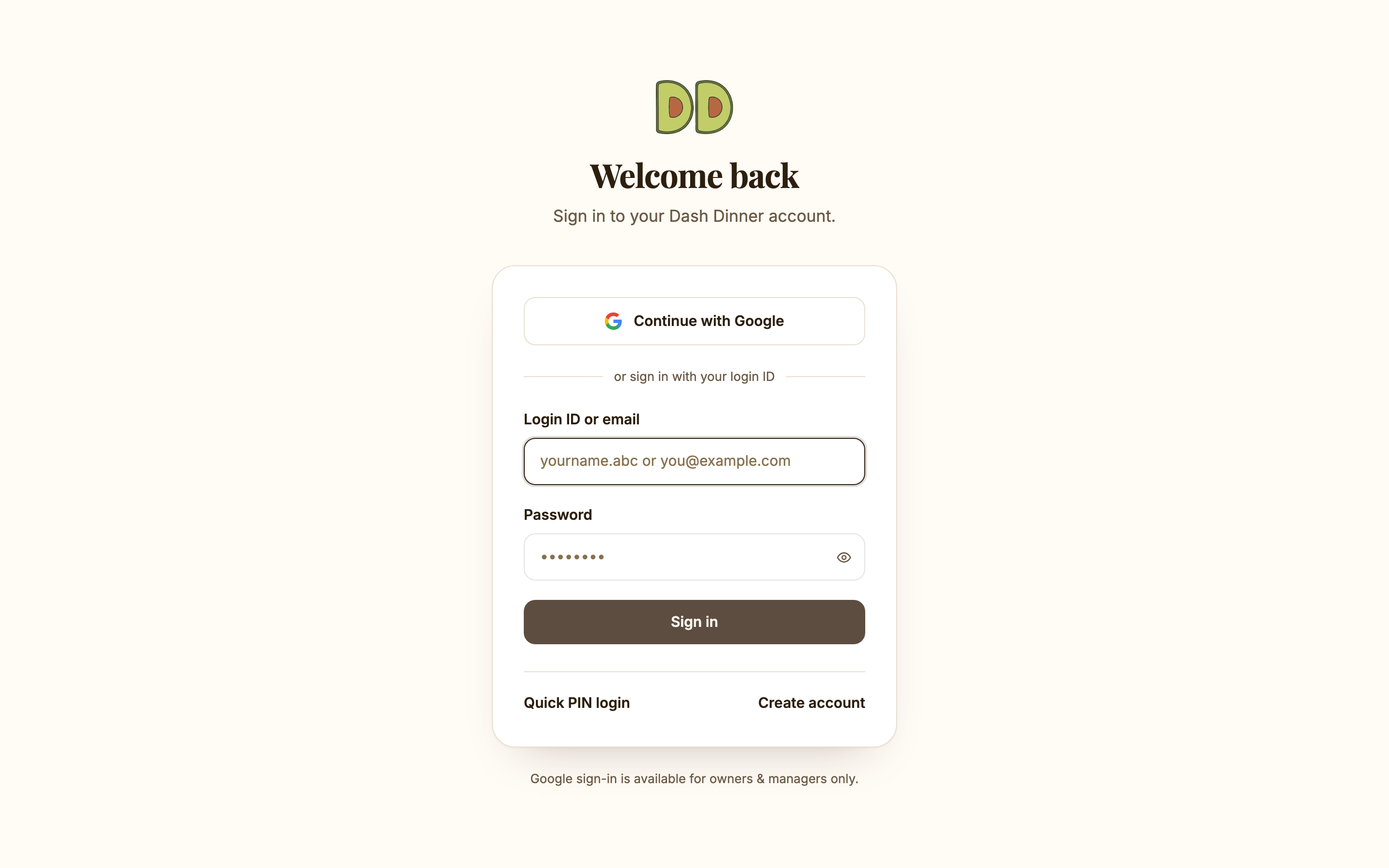
- Enter your email and password, then tap Sign in.
- Staff can switch to PIN and enter their 4-digit PIN.
- You land on the dashboard, with the main sections along the bottom.
iOS
- Enter your email and password, then tap Sign in.
- Staff can switch to PIN and enter their 4-digit PIN.
- You land on the dashboard.
Android
Worked example
A new server starts their shift. The manager creates the server in Workforce, sets a PIN, and hands them the terminal. The server taps PIN login, enters their PIN, and is ready to take orders in seconds — without knowing the manager's password.
Tips & things to watch
- ✅ Use PIN login for the floor. It's fast and keeps each server's actions under their own name for reports and the audit trail.
- ✅ Stay signed in on the terminal. DashDinner keeps working through brief network drops and syncs when you're back online.
- ⚠️ Forgot the password, not the PIN. A PIN only works once a manager has created the staff member. If PIN login rejects you, check with your manager that your account exists.