Physical count
What it's for
A physical count (stocktake) reconciles the whole store at once: you count what's actually on the shelf, and DashDinner applies the differences so your on-hand figures — and their value — match reality.
Where to find it
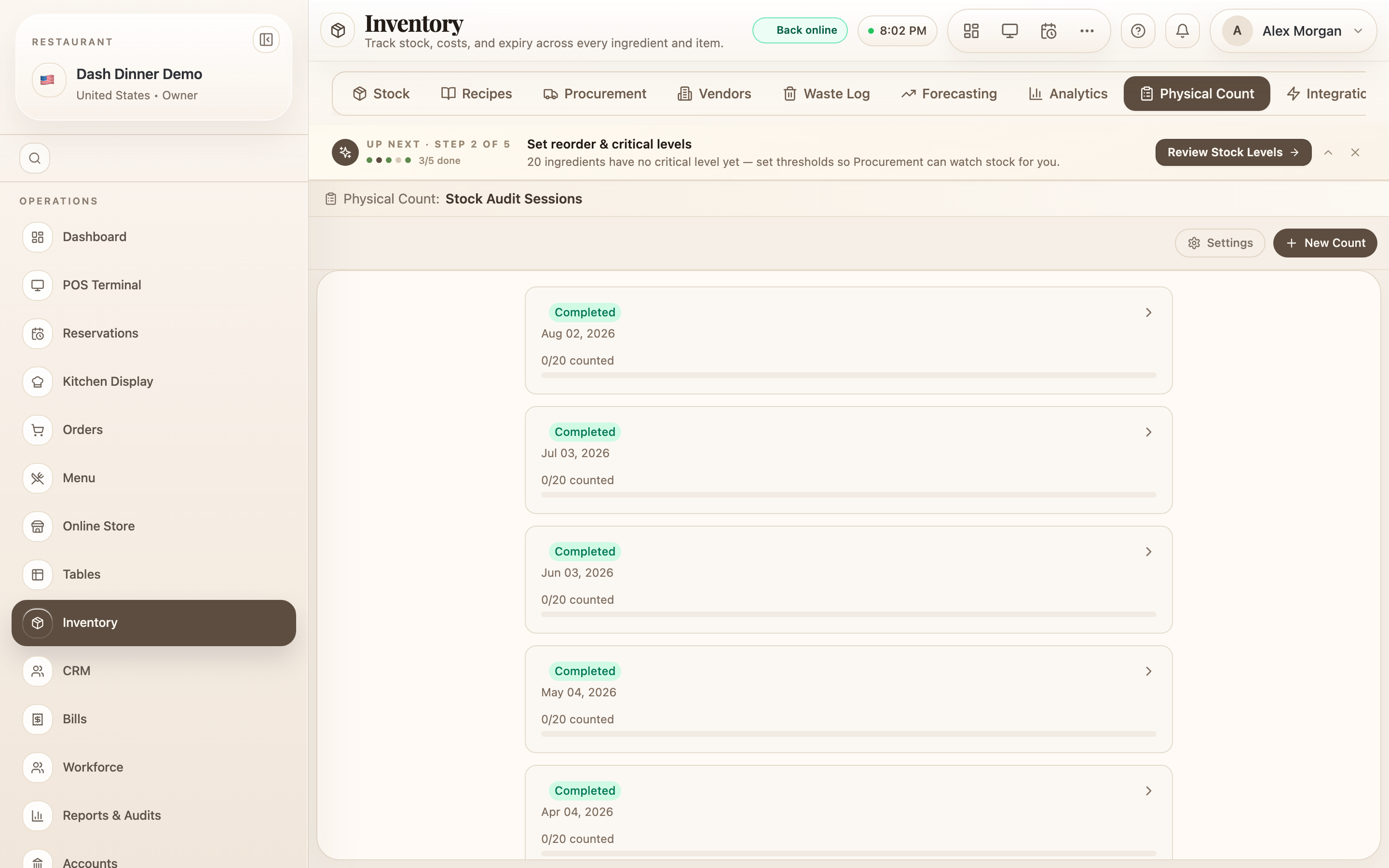
In the Inventory hub, choose the Physical Count tab (route
/inventory/physical-count). You'll see past sessions and any count in progress.
Start a count
- Choose New Count to open Start New Count.
- Give it a Session Title (a dated one is filled in for you), add who it's Counted By, and any Notes.
- Choose Start Count. Every active ingredient is added as a line to count.
Enter what you counted
The count sheet shows each ingredient's System figure, an Actual on hand box, and the Variance. Type in what you physically counted — more or less than the system is both fine — and the variance updates live. A progress readout shows how many of the total you've counted.
Finalise
- When you've counted everything, choose Finalise to see the variance summary.
- For any material difference you may be asked to choose a reason — options include Spillage, Wastage / Spoilage, Theft / Loss, Consumed, not logged, Received, not logged, and others — and to type CONFIRM to acknowledge a large adjustment.
- Choose Apply Adjustments. DashDinner updates every ingredient's on-hand quantity to match your count.
A session shows as In Progress, then Completed once applied (or Cancelled if you void it).
Worked example
Month-end stocktake. Choose New Count, title it Count Aug 31, put your name under Counted By, and Start Count. Walk the store entering each Actual on hand. The oil reads 4 L against a system 6 L — a −2 L variance; at finalise you tag it Spillage, type CONFIRM, and Apply Adjustments. Stock now matches the shelf.
Tips & things to watch
- ✅ Count when the store is quiet (open or close) so stock isn't moving as you count.
- ✅ Tag variances honestly — the reasons feed your waste and shrinkage picture.
- ⚠️ Applying adjustments is final. It overwrites on-hand quantities to your counted numbers, so double-check big variances before you confirm.