Recipe costing
What it's for
Recipe costing works out what a dish costs to make from its ingredients, and compares it to the menu price — so you can see each dish's food cost % and gross margin, and spot the ones eating your profit.
Where to find it
In the Inventory hub, choose the Recipes tab (route
/inventory/recipes). This is the Dish Costing Workspace: a Dish Library on the left and the
recipe on the right.
Web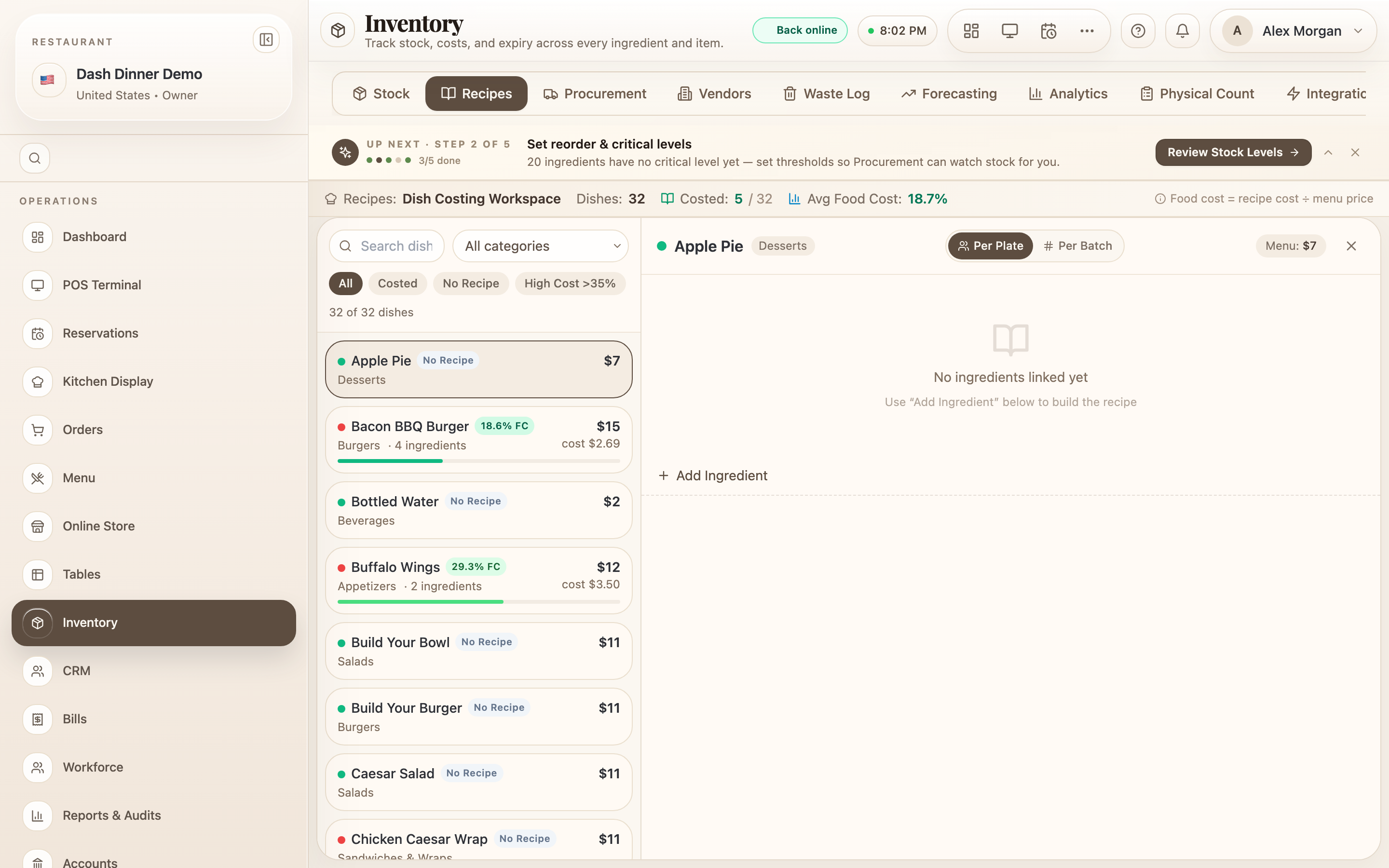
Cost a dish
- Pick a dish from the Dish Library (search "Search dishes…"). Recipes are costed per menu dish — there's no separate "new recipe" to create.
- Choose your plate or batch serving mode, depending on whether you want the cost per plate or per batch.
- Choose Add Ingredient and fill the line: the Ingredient, the Qty / plate, its Unit, and the cost per unit. DashDinner shows the Cost / plate for the line.
- Save with Save Ingredient (or Save All when you've added several).
Read the result
The summary bar gives you four numbers:
- Recipe Cost — what the dish costs to make.
- Menu Price — what you charge (from the menu item).
- Food Cost % — recipe cost ÷ menu price. It's colour-coded: green under 30%, amber over 30%, red over 35%.
- Gross Margin — the money left after ingredient cost.
Worked example
Is the paneer tikka priced right? Open it in the Dish Library, add its ingredients — paneer, spices, oil — each with a per-plate quantity. The Recipe Cost comes to ₹95 against a ₹280 Menu Price: a 34% Food Cost % (amber). That's a nudge to trim the recipe or nudge the price.
Tips & things to watch
- ✅ Aim under ~30–35% food cost for most dishes — the colour tells you at a glance.
- ✅ Keep ingredient costs current (via Add Stock) so the recipe cost reflects what you're really paying.
- ⚠️ Costing uses the menu price you set on the item — if the price is blank, the food cost % can't be worked out.