Waste log
What it's for
The Waste Log records stock that didn't get sold — spoilage, spills, prep trim, staff meals. Logging it keeps your on-hand counts accurate, puts a rupee value on what you're losing, and shows where to cut it.
Where to find it
In the Inventory hub, choose the Waste Log tab (route
/inventory/waste). Its own tabs organise entries into Batch Log,
Morning Sweep, Waste Log, and
Variance Report.
Web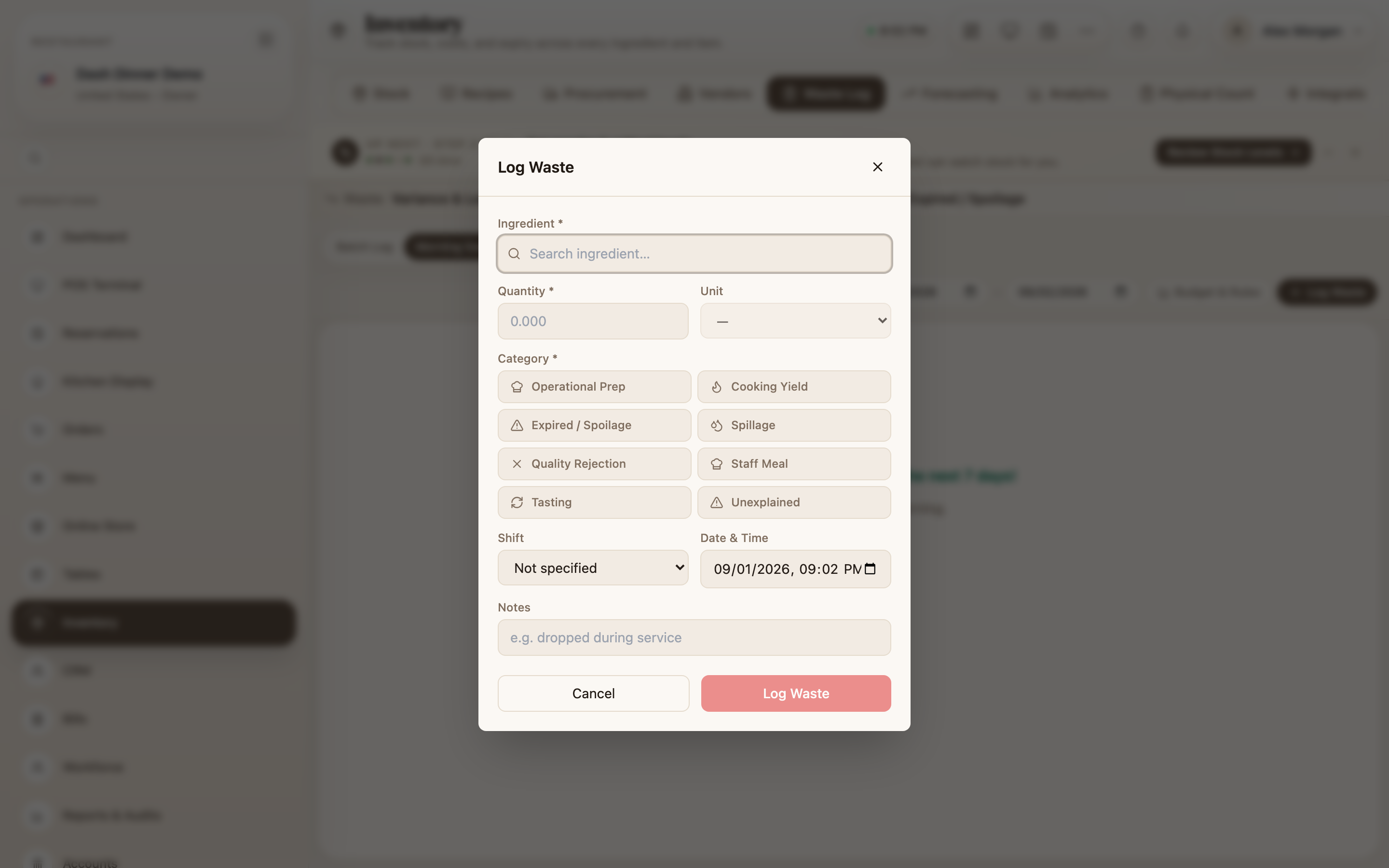
Log some waste
- Choose Log Waste.
- Fill in the entry:
- Ingredient — search and pick it (its in-stock amount shows).
- Quantity and Unit.
- Category — why it was wasted: Operational Prep, Cooking Yield, Expired / Spoilage, Spillage, Quality Rejection, Staff Meal, Tasting, or Unexplained.
- optionally a Shift, the Date & Time, and Notes.
- As you fill it in, an Estimated waste cost shows what the waste is worth.
- Choose Log Waste to save. If the entry is large enough to need a manager's sign-off, the button reads Submit for Approval instead.
Logging waste reduces the ingredient's on-hand stock, so your counts stay true.
Worked example
A tray of paneer spoiled overnight. Choose Log Waste, search Paneer, enter 2 kg, set Category to Expired / Spoilage, note "left out of chiller", and check the Estimated waste cost. Choose Log Waste — stock drops by 2 kg and the loss is on the record.
Tips & things to watch
- ✅ Log waste as it happens. A quick habit here is what makes your food-cost numbers real.
- ✅ Use the right category — the split between prep, spoilage, and spillage is where you find savings.
- ⚠️ Large entries may need approval. If you see Submit for Approval, the waste is recorded once a manager signs off.