Your Online Store
What it's for
Online Store is where you run your own customer ordering page — the storefront guests visit to order delivery or takeaway directly from you. From one screen you publish it, style it, set delivery and payment options, and choose what appears on the online menu.
This is your own ordering page, separate from third-party aggregators. It's managed here on
the web dashboard; customers open it as a web link (your store lives at a /r/your-name address).
Where to find it
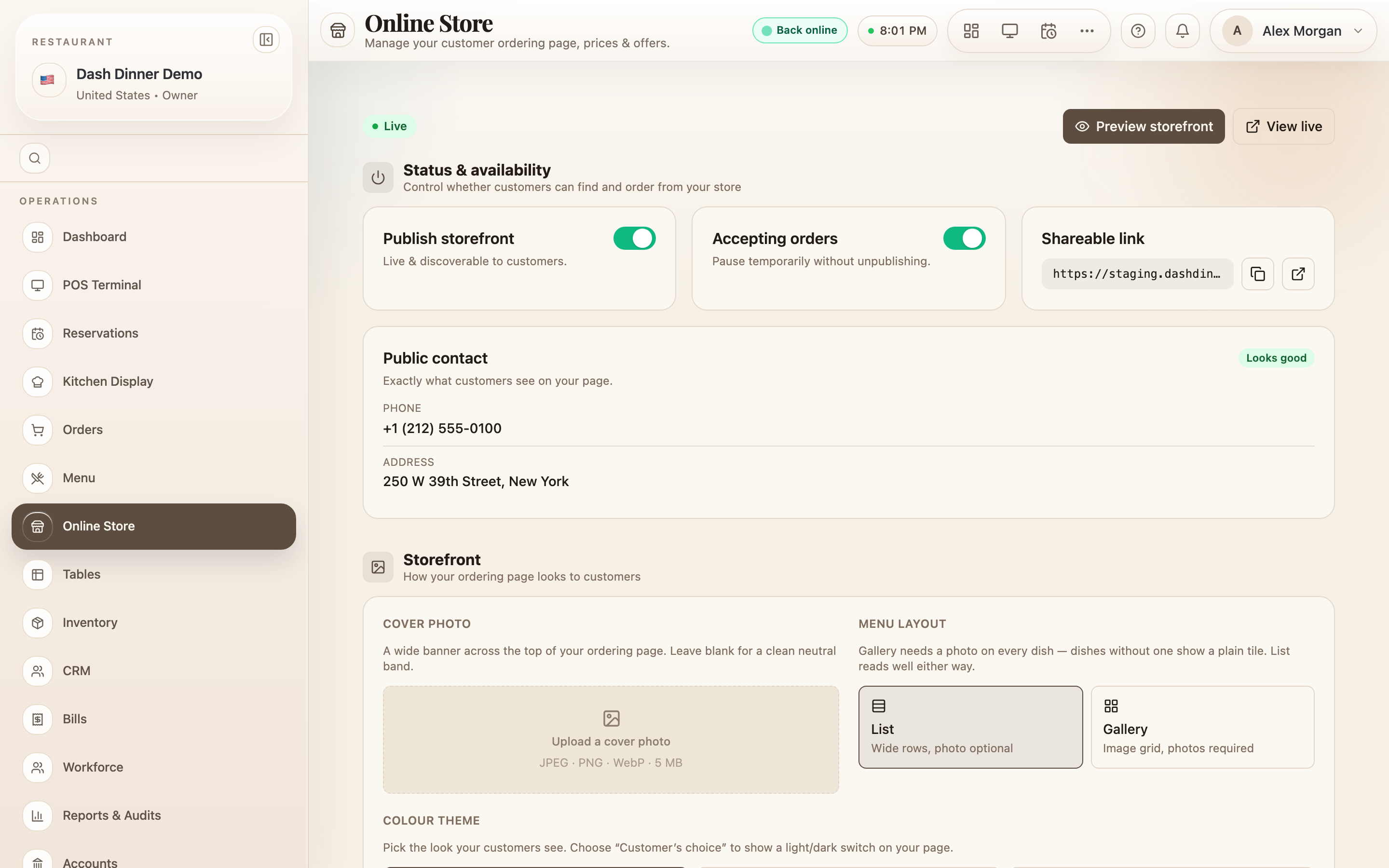
Choose Online Store in the left sidebar (route /online-store). A
badge at the top shows whether your store is Live,
Paused, or Unpublished.
Publish and share
Under Status & availability:
- Publish storefront — the on/off switch that makes your page live and discoverable. (If your public details are incomplete, finish them first — the page points you to what's missing.)
- Accepting orders — pause orders temporarily without unpublishing (handy when you're slammed).
- Shareable link — your store's web address, with Copy and Open. Put it in your bio, WhatsApp, and posters.
At the top you can also Preview storefront (a desktop/mobile preview) and View live once it's published.
Style the storefront
Under Storefront:
- Cover photo — upload a banner (JPEG/PNG/WebP, up to 5 MB).
- Menu layout — List (wide rows) or Gallery (an image grid — photos required).
- Colour theme — Light, Dark, or Customer's choice (show a switch).
Delivery & fulfilment
Under Delivery & fulfilment:
- Order types — turn on Delivery and/or Takeaway / pickup.
- Charges & timing — Delivery charge, Minimum order, Est. time (min), and delivery Radius (km).
- Customer notes — Payment instructions and a Delivery note (e.g. "Free delivery above ₹500").
Payments
Under Payments, set how customers pay you online. In India that's a UPI card (UPI ID, payee name, phone) so you're paid before you cook; elsewhere you can connect card payments (your own Stripe) or a local prepay option. There's also a We carry a card machine toggle for paying at handover.
The online menu
Under Online menu, choose what customers can order and at what price:
- Visible — the eye toggle shows or hides each item online.
- Online price — an optional override; leave blank to use the menu price.
- Push — star up to six items to offer them just before checkout.
Use the search, category chips, and status filter to work through the list, and the bulk Price Studio bar to price many items at once (match store price, a % off, an amount off, or one flat price) with an undo.
Offers
The Offers section lists your delivery and takeaway promotions with inline Publish / Pause. Offers are created over in Promotions — choose Create offer to go there.
Where online orders arrive
This page sets up your store — it doesn't show incoming orders. Online orders land on the Orders board alongside your dine-in and takeaway orders, and fire to the kitchen like any other.
Worked example
Go live with delivery. Under Delivery & fulfilment turn on Delivery, set a Delivery charge, Minimum order, and Radius (km). Add your UPI ID under Payments. Upload a cover photo, hide anything not for delivery under Online menu, then turn on Publish storefront and Copy the link to share.
Tips & things to watch
- ✅ Take payment up front (UPI/card) for delivery to cut no-shows and fake orders.
- ✅ Use Push (max 6) to nudge high-margin add-ons at checkout.
- ⚠️ Pause vs. unpublish — Accepting orders pauses without taking your page down; Publish storefront takes it offline entirely.
- ⚠️ Orders don't arrive here — watch the Orders board for incoming online orders.