The Orders board
What it's for
The Orders board is your live picture of every order in the house — no matter where it came from (POS, QR menu, or an aggregator). From here you watch orders move from active to paid, and settle them, without standing at the POS.
Where to find it
- Web
- iOS
- Android
Choose Orders in the left sidebar (route /orders).
Open Orders from the app.
Open Orders from the app.
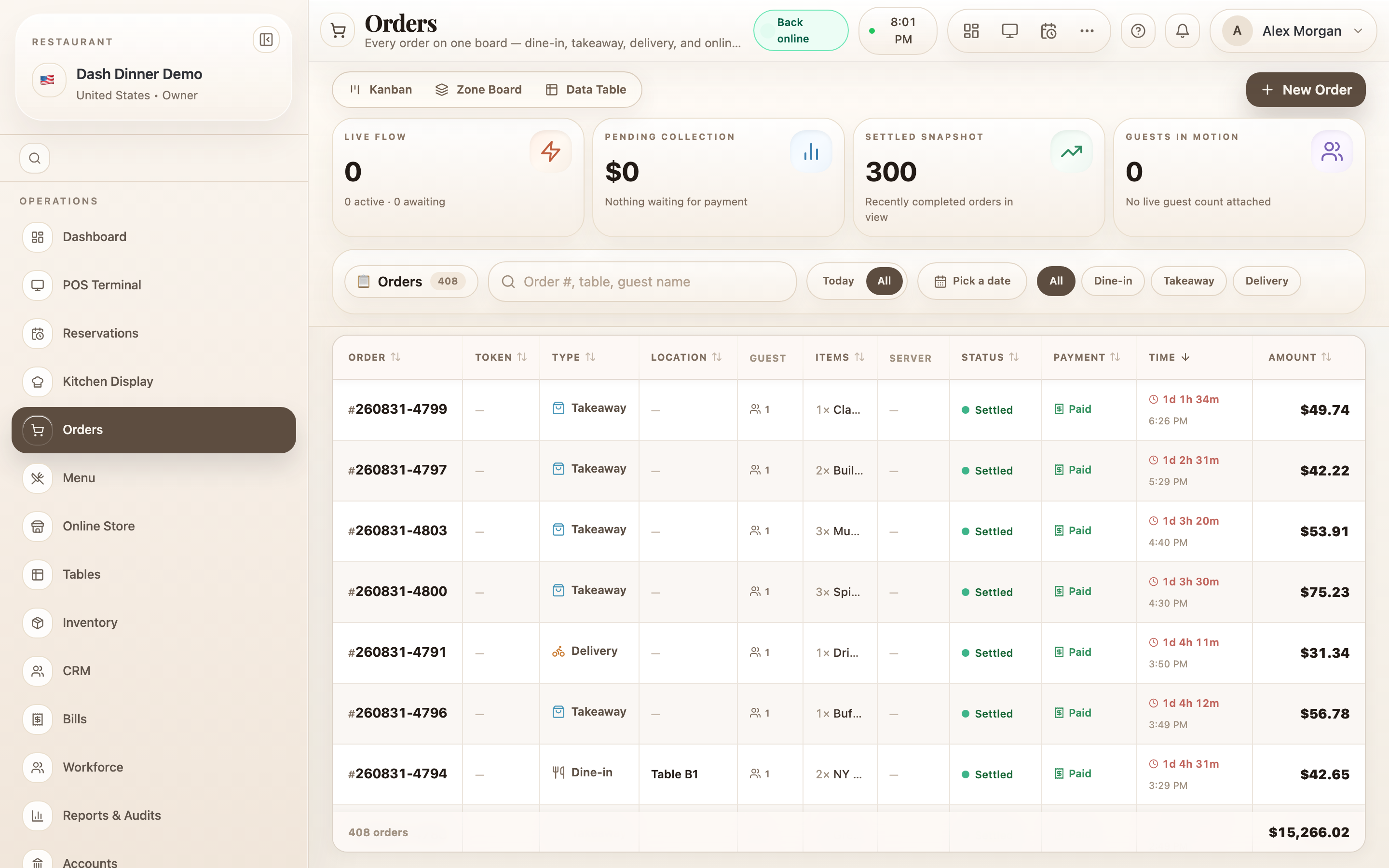
Views
A view toggle at the top switches how orders are laid out (your choice is remembered):
- Kanban — four lanes: Active, Awaiting Payment, Settled, and Cancelled.
- Zone Board — split by channel: DINE-IN tiles, a TAKEAWAY & TOKEN strip, and a DELIVERY list.
- Data Table — a sortable table (Order, Token, Type, Guest, Server, Status, Payment, Amount…).
The four lanes (order lifecycle)
Every order sits in one of four buckets: Active (in service), Awaiting Payment (billed, not yet paid), Settled, or Cancelled. On Active cards a kitchen badge shows progress — 🔥 Kitchen, ✅ Ready, or 🍽 Served.
Working an order
Each card carries its next action:
- 📋 Bill & Settle on an active order — generates the bill and opens settlement (the same flow as Settle a bill).
- 💳 Collect Payment on an order awaiting payment.
- The ✕ button cancels an active order (you confirm with Yes, Cancel).
- Print Receipt on a settled order.
Click any order to open its detail drawer — guest, server, the items with their kitchen status, and the totals (subtotal, tax, paid, credit notes, outstanding). From there, Open Finance takes you to full settlement, refunds, and credit notes.
You don't edit an order's items here. To change an order, open it in the POS — New Order takes you to the POS terminal.
Filters and search
- Search by "Order #, table, guest name".
- Toggle Today vs All, or use Pick a date to review a past day (a banner shows you're viewing history, with Back to today to return).
- Order-type tabs — All, Dine-in, Takeaway, Delivery, QSR — appear for the types you actually have.
What the top tiles tell you
Four summary tiles: Live Flow (active + awaiting), Pending Collection (total outstanding), Settled Snapshot, and Guests In Motion (live guest count).
Worked example
Clear the awaiting-payment lane at close. Switch to Kanban, look at the Awaiting Payment lane, and for each order choose 💳 Collect Payment, take payment, and it moves to Settled. The Pending Collection tile drops to zero when the lane is clear.
Tips & things to watch
- ✅ Use Zone Board during service — it groups dine-in, takeaway, and delivery the way your floor actually works.
- ✅ Watch Pending Collection — it's the money still to be taken before you close the day.
- ⚠️ Editing happens in the POS, not here — the board is for tracking and settling.
- ⚠️ Aggregator accept/reject isn't here. Online orders just appear; accepting/rejecting aggregator orders lives on the Aggregators screen.