Take an order
What it's for
This is the heart of service: add items to the order from the menu, then send them to the kitchen so they can start cooking. You can add more items to the same order at any time during the meal.
Where to find it
You take orders in the POS. For dine-in, seat a table first; for takeaway or delivery, just set the order type and start adding items.
Walkthrough
- Web
- iOS
- Android
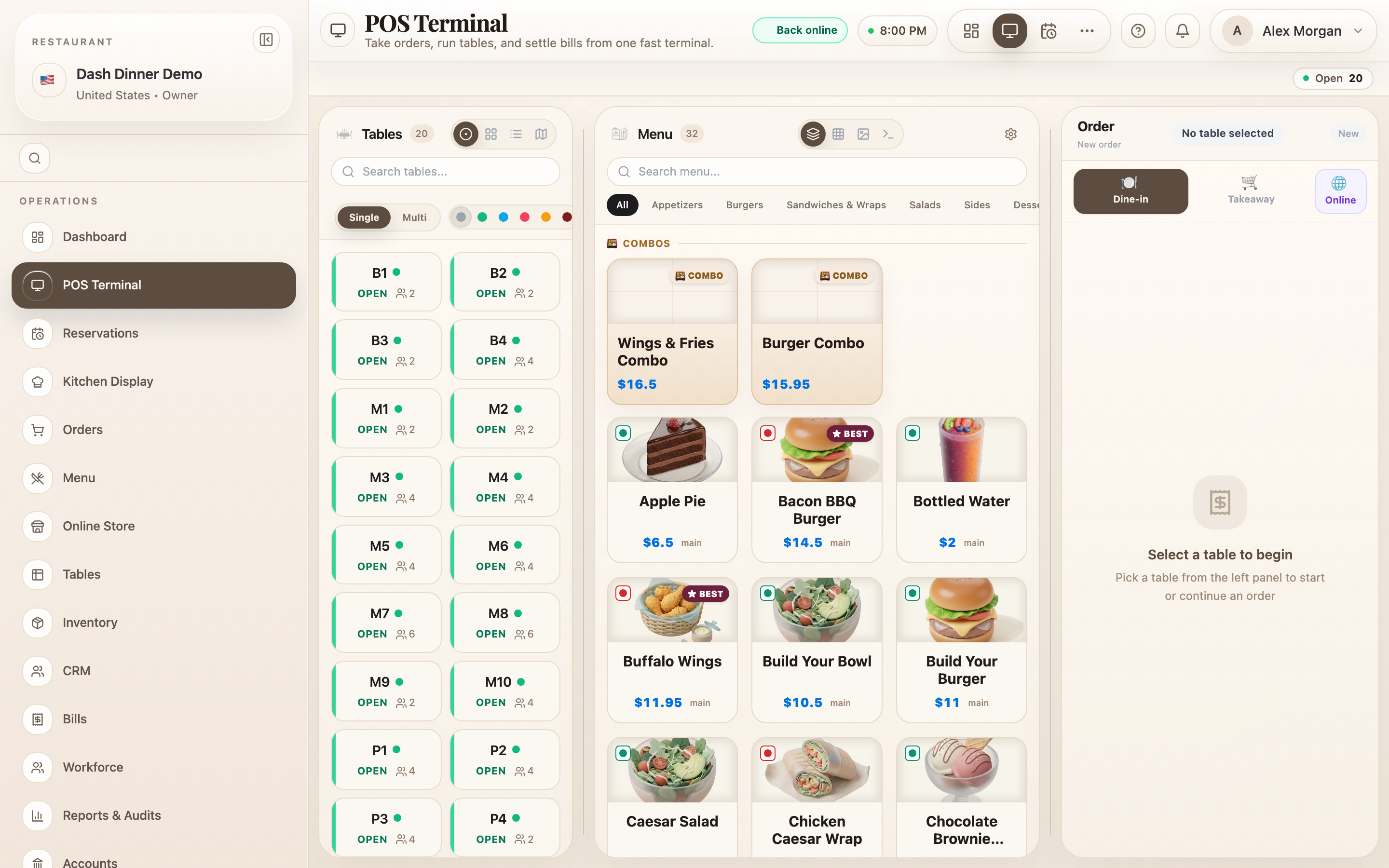
- Set the order type above the order panel: Dine-in, Takeaway, or Delivery.
- In the menu, pick a category chip (for example Starters), or use All, Combos, or Promotions.
- Click an item card to add it to the order. It appears in the order panel on the right with its price.
- Adjust quantities in the order panel, and add any notes for the kitchen.
- When the order is ready, choose Send to Kitchen. (If your kitchen prints tickets rather than using a screen, this button reads KOT.)
- Set the order type: Dine-in, Takeaway, or Delivery.
- Choose a category, then tap an item to add it to the order.
- Review the order and adjust quantities.
- Tap Send to Kitchen (or KOT for a printing kitchen).

- Set the order type.
- Choose a category, then tap an item to add it.
- Review the order and adjust quantities.
- Tap Send to Kitchen (or KOT).

Adding to an order later
Guests almost always order in rounds. Open the same table again, add the new items, and choose Send to Kitchen once more — only the new items go to the kitchen, and they're added to the running bill.
Counter and retail sales
For a quick counter sale with no kitchen ticket, items are flagged "Counter sale — no kitchen ticket." Instead of sending to the kitchen you'll see Add to order, and you can go straight to Bill & Settle.
Worked example
Table 4 orders drinks first, then food. Seat table 4, add two lemonades, and Send to Kitchen — the bar starts pouring. Ten minutes later the guests order mains: open table 4 again, add the mains, and Send to Kitchen again. Both rounds are on one bill when they're ready to pay.
Tips & things to watch
- ✅ Send in rounds. Each Send to Kitchen fires only the new items, so the kitchen gets a clean ticket every time.
- ✅ Use categories to move fast. The category chips (and All) are quicker than scrolling one long list.
- ⚠️ Nothing reaches the kitchen until you send. Adding an item to the order panel isn't the same as sending it — always finish with Send to Kitchen.
Related guides
- The Kitchen Display — where sent orders appear for the kitchen
- Settle a bill
- Split a bill