Manage reservations
What it's for
Once a booking exists, this is how you run it through the evening — confirm it, mark the party arrived, seat them, and release the table when they leave — plus edit, cancel, take deposits, and tidy up missed bookings.
The booking lifecycle
A reservation moves through these statuses: Pending → Confirmed → Arrived → Seated → Dining → Completed. Along the way it can also be Cancelled, No Show, or Waitlisted.
Move a booking along
In the Overview view, each booking card has the next action built in:
- Pending → Confirm
- Confirmed → Mark Arrived (or No Show)
- Arrived → Seat Now
- Seated → Start Dining
- Dining → Release Table (completes the booking)
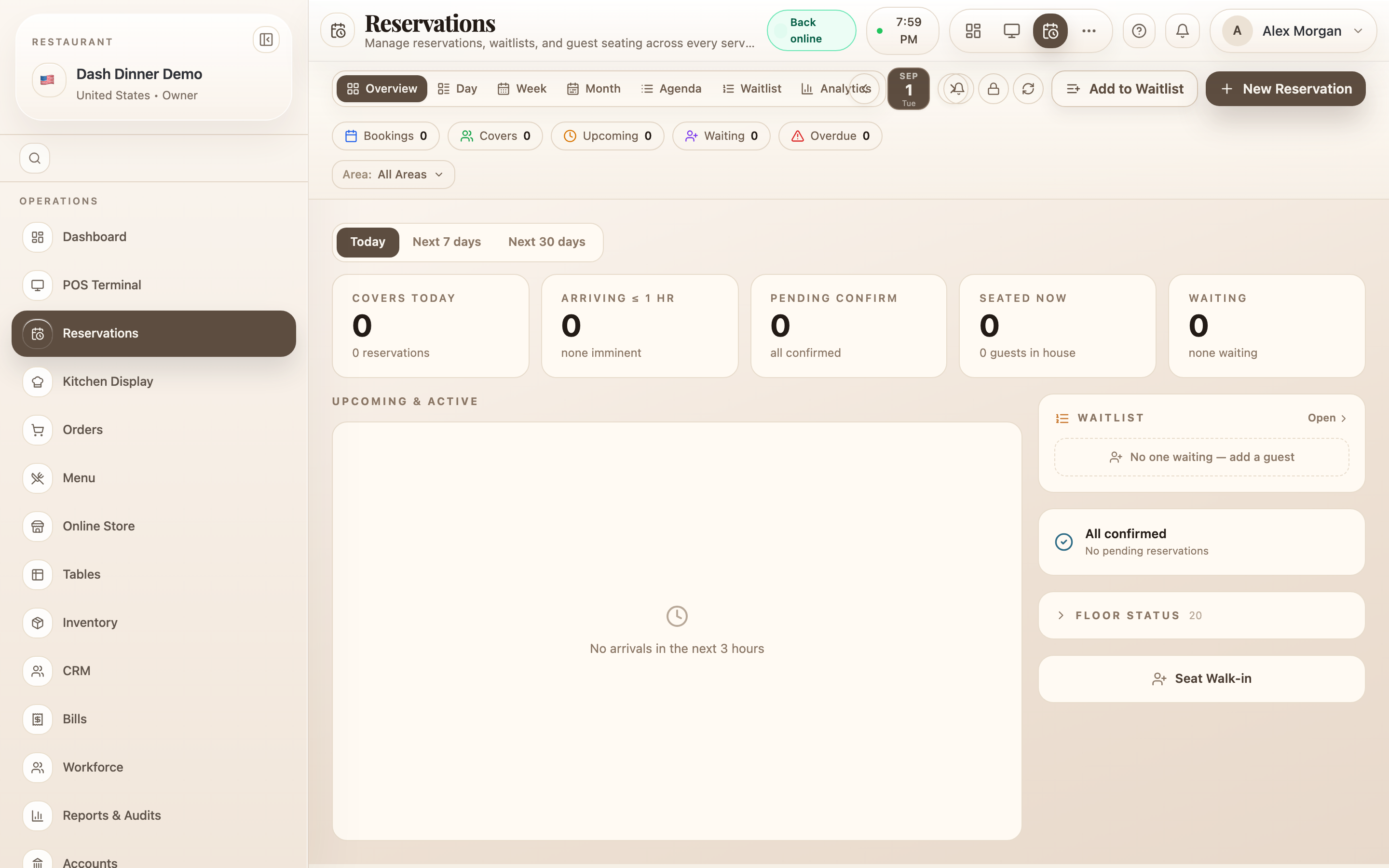
Seat Now marks the booking Seated — it doesn't open a POS order by itself. To take the party's order, seat their table in the POS; the POS pulls in the reservation's guest details for you.
The detail panel
Click any booking to open Reservation Details. Here you can:
- Edit Reservation — change any detail.
- Cancel — you'll be asked to confirm with Yes, cancel or Keep it, and shown the cancellation policy.
- See a no-show risk chip — Low, Medium, or High no-show risk — to help you decide whether to ask for a deposit or reconfirm.
Deposits
In the detail panel's Deposits section, choose Record to log an Amount, Method, and optional transaction reference. Each deposit shows a status (paid, refunded, or forfeited) with a running Total paid.
Block tables
To hold tables out of service (maintenance, a private event), choose the Table blocks (lock) icon in the top bar. Pick the Table / group, a From and To time, and a Reason (Maintenance, Private Event, Deep Clean, and so on), then choose Block table.
Reconcile a missed booking
If a party came in and was served but the booking was never marked arrived, open it and use Tag to an order in the Order section. Search the order or KOT number and choose Reconcile & complete — the booking is linked to that order and closed out, so your reservation records stay accurate.
Worked example
A confirmed party arrives. In Overview, find their card and choose Mark Arrived, then Seat Now when their table is ready. Open the table in the POS to take the order. When they leave, choose Release Table to complete the booking.
Tips & things to watch
- ✅ Confirm early — a quick Confirm the day before cuts no-shows.
- ✅ Watch the risk chip on big bookings and ask for a deposit when it's high.
- ⚠️ Seat Now ≠ a POS order. Seat the table in the POS to actually start their bill.
- ⚠️ Reconcile missed bookings so your covers and no-show numbers stay honest.