Business profile
What it's for
Your Business Profile is your restaurant's core identity in DashDinner — its name and contact details, where and when it operates, and the tax it charges. These details flow into bills, receipts, and reports.
Where to find it
Choose Settings, then Business Profile
(route /settings/general).
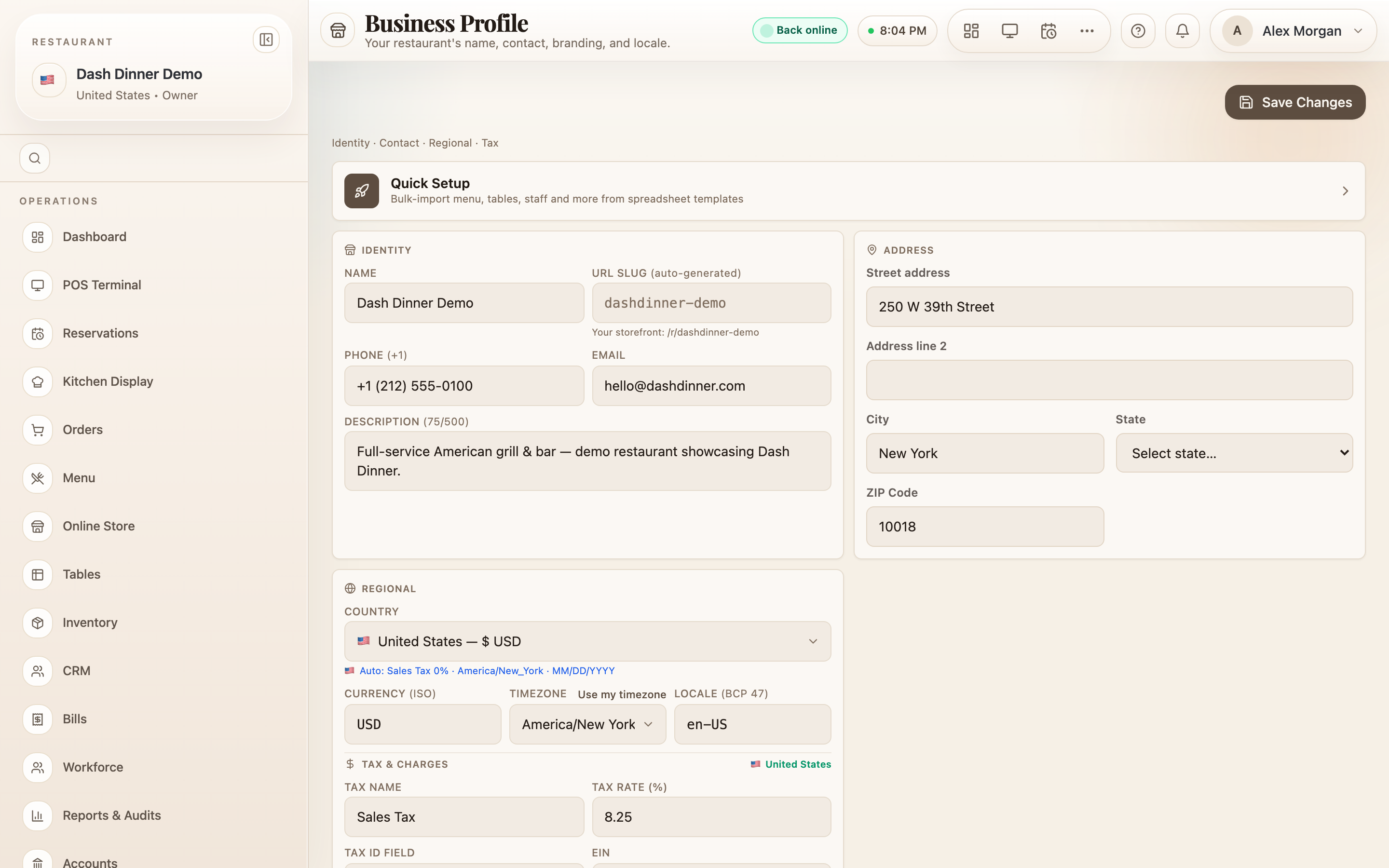
Identity
Under Identity, set your Name, Phone, Email, and an optional Description. (Your URL Slug is generated for you.)
Address & regional
- Address — your street address fields.
- Regional — your Country, Currency (ISO) (e.g. INR, USD), Timezone (there's a Use my timezone shortcut), and Locale.
Currency and timezone matter everywhere — prices, bills, and every time shown in the app follow these. Set them correctly at the start.
Tax & charges
Under Tax & Charges you set the tax your restaurant charges:
- Tax Name — e.g. GST or VAT.
- Tax Rate (%) — the percentage applied.
- Tax ID — your registration number (the field's label adapts to your country).
- Service Charge (%) — an optional service charge, with quick preset buttons.
This is where the tax rate lives. How that tax is shown and split on the printed receipt (for example CGST + SGST) is set separately in Bill & receipt setup.
Save
Business Profile uses the shared Save Changes bar — it appears once you edit a field. Choose Save Changes to apply, or Discard to undo.
Your logo isn't uploaded here — it lives under Appearance & branding.
Worked example
Set up a new restaurant in India. Enter the name and phone under Identity, fill the Address, set Currency (ISO) to INR and the Timezone to Asia/Kolkata, then under Tax & Charges set Tax Name to GST, Tax Rate (%) to 5, and your GST number in Tax ID. Choose Save Changes.
Tips & things to watch
- ✅ Get currency and timezone right first — they underpin every price and timestamp.
- ✅ Set the tax rate here, then style its appearance on the receipt in Bill Setup.
- ⚠️ Logo is on Appearance, not here — don't go hunting for an upload on this page.