Printing & kitchen tickets
What it's for
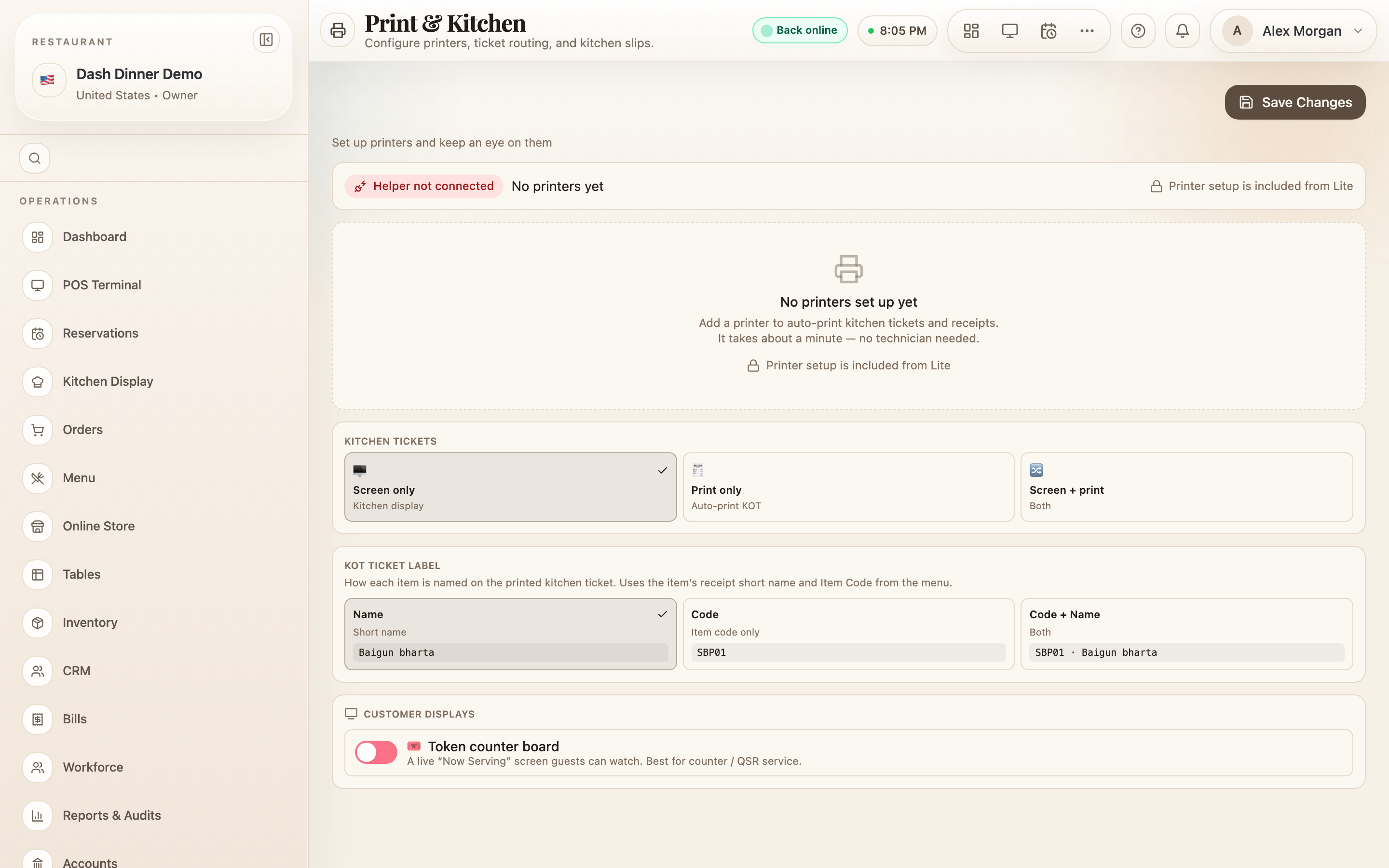
Print & Kitchen is where you connect printers and decide how kitchen tickets (KOTs) and the customer display work — so orders reach the kitchen and receipts reach guests the way you want.
Where to find it
Choose Settings, then Print & Kitchen
(route /settings/print).
Printers
Choose Add printer to set one up (a wizard walks you through it). Each printer has:
- Test print — sends a test slip so you can confirm it works.
- Diagnose — a connection check when something's not printing.
Kitchen tickets
- Kitchen tickets — how orders reach the kitchen: Screen only (the Kitchen Display), Print only (auto-print a KOT), or Screen + print (both).
- KOT ticket label — what prints for each item: Name, Code, or Code + Name (with a live sample).
Customer display
Turn on the Token counter board for a live "Now Serving" screen. When it's on, an Open customer display button and a shareable display URL appear — open it on a second screen facing your guests.
Save
Printers and the customer-display toggle save immediately. The kitchen-ticket selectors use the shared Save Changes bar.
Worked example
Kitchen screen plus a printed backup. Choose Add printer and run the wizard, then Test print to confirm. Set Kitchen tickets to Screen + print and KOT ticket label to Code + Name so cooks get both. Choose Save Changes.
Tips & things to watch
- ✅ Always Test print after adding a printer — catch problems before service.
- ✅ Screen + print gives the kitchen a paper backup if a screen goes down.
- ⚠️ Set up stations too. Per-station printers are configured alongside your kitchen stations.