Settings overview
What it's for
Settings is where you set up DashDinner for your restaurant — your business details, taxes, receipt, theme, printers, hours, and plan. It's mostly an owner/manager job you do once at setup and revisit occasionally.
Where to find it
Choose Settings in the left sidebar. It opens on Business Profile, and the other sections are listed beneath Settings in the sidebar.
Web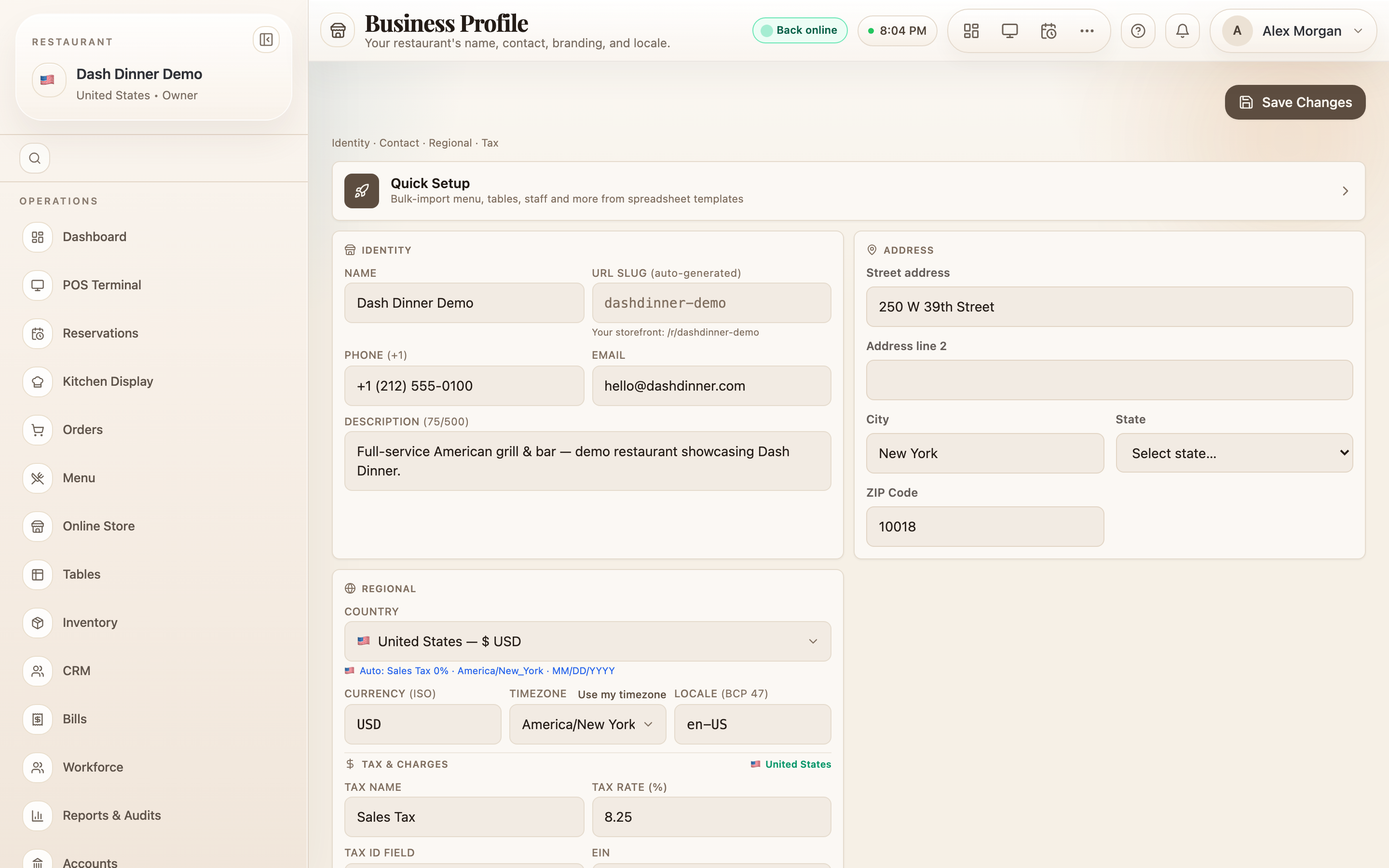
The sections
| Section | What it covers |
|---|---|
| Business Profile | Name, contact, address, currency, timezone, and your tax rate — see Business profile |
| Operating Hours | Open/close times per day, special dates, and POS auto-lock |
| Bill Setup | How your printed receipt looks — see Bill & receipt setup |
| Appearance | Theme, accent colour, and logo — see Appearance & branding |
| Print & Kitchen | Printers and kitchen ticket options — see Printing & kitchen tickets |
| Features | Turn optional modules on or off for your plan |
| Roles & Permissions | Fine-grained access beyond a person's role |
| Account & Security | Your login and security |
| Billing & Plan | Your subscription and invoices |
How saving works
Most sections share a single Save Changes bar that appears once you edit something (with a Discard option to undo). A few sections — Bill Setup, Appearance, and Billing & Plan — have their own save button, called out in each guide.
tip
New to DashDinner? The owner-only Quick Setup walks you through the essentials in order — a fast way to get set up before fine-tuning individual sections here.