Subscription & billing
What it's for
This is where you manage your DashDinner plan — see what you're on, upgrade when you grow, keep an eye on your usage limits, and get your invoices.
Where to find it
There are two places, and they overlap:
- Subscription in the sidebar (route
/subscription) — a simple view of your plan and the options. - Settings → Billing & Plan (route
/settings/billing) — the fuller view, adding live usage meters and your invoice history.
Use Subscription for a quick look or to change plan; use Billing & Plan when you need usage or invoices.
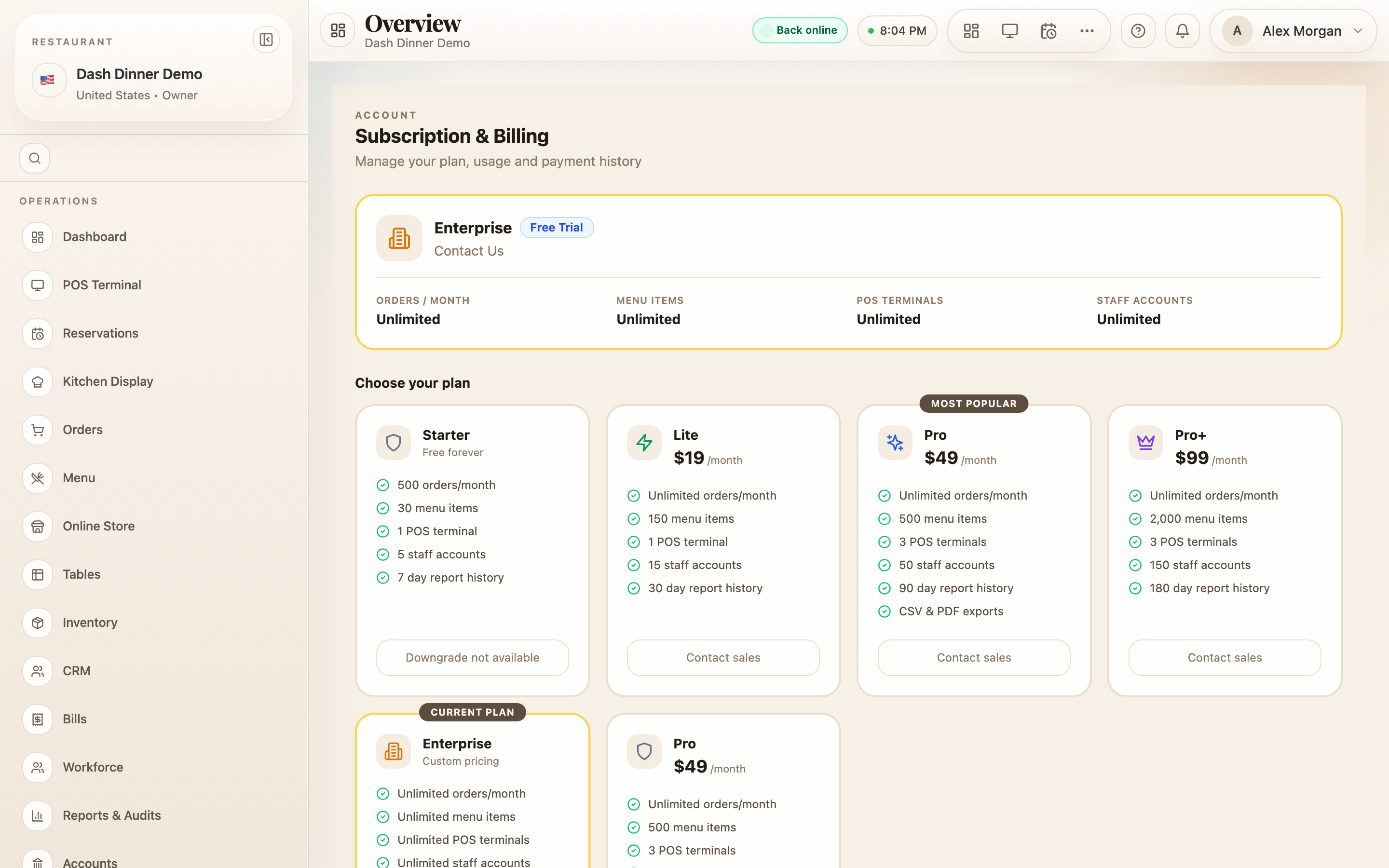
Your current plan
The plan card shows your tier's name and a status badge: Free Trial, Active, Past Due, Paused, or Cancelled. It also shows when it Renews (or Expires), and a Trial ends date while you're trialling. If a payment fails you'll see a grace-period notice.
The plans
DashDinner has five tiers: Starter (free), Lite, Pro, Pro+, and Enterprise. Each plan card shows its monthly price and what's included — orders per month, menu items, POS terminals, staff accounts, report history, and higher-tier extras (exports on Pro; AI and multi-outlet on Enterprise). Your current one is marked Current plan, and Pro is flagged Most popular.
Change plan
On a plan you can move up to, choose Upgrade (the button names the plan, e.g. Upgrade to Pro) — payment is taken in a secure checkout and the plan activates instantly. Your current plan shows Your current plan; for Enterprise or a downgrade you'll see Contact sales / Talk to us.
If self-serve upgrades aren't open for your account yet, the button reads Contact us to change plan — reach out and the team will switch you over.
Usage against your limits
On Settings → Billing & Plan, the Usage panel shows live meters — Monthly Orders, Menu Items, Staff Accounts, POS Terminals, KDS Screens — each as current / limit. As you approach a limit it warns (80% used → Approaching limit → Limit reached — upgrade to continue).
Invoices & payment
- Invoices: the Invoice History table (on Billing & Plan) lists each invoice with its date, plan, amount, and status, and a Receipt download.
- Payment: taken securely at checkout (Razorpay in India — UPI, cards, net banking; Stripe elsewhere). There's no saved card to manage here — you pay when you upgrade.
Cancel
Choose Cancel subscription (or Cancel Plan) and confirm. Your access continues until the end of your current period, and you can Undo cancellation before then.
How plans unlock features
When a feature is above your plan, its switch on Settings → Features is locked with a badge naming the plan that unlocks it (for example 🔒 Pro plan). Upgrading here turns those on.
Worked example
Growing out of the free plan. On Subscription you see you're on Starter and hitting the orders limit (the Monthly Orders meter on Billing & Plan reads Limit reached). Choose Upgrade on the Pro card, pay in the checkout, and your higher limits and Pro features switch on immediately.
Tips & things to watch
- ✅ Watch the usage meters — they warn before a limit stops you mid-service.
- ✅ Download receipts from Billing & Plan for your accounts.
- ⚠️ No saved card here — payment happens in the checkout at upgrade time.
- ⚠️ Cancelling isn't instant — access runs to the end of the period, and you can undo it.