Leave requests
What it's for
Leave handles time off: staff request it, managers approve or decline it, and approved leave appears on the shift planner automatically so nobody gets rostered while they're away.
Where to find it
In the Workforce hub, choose the Leave tab.
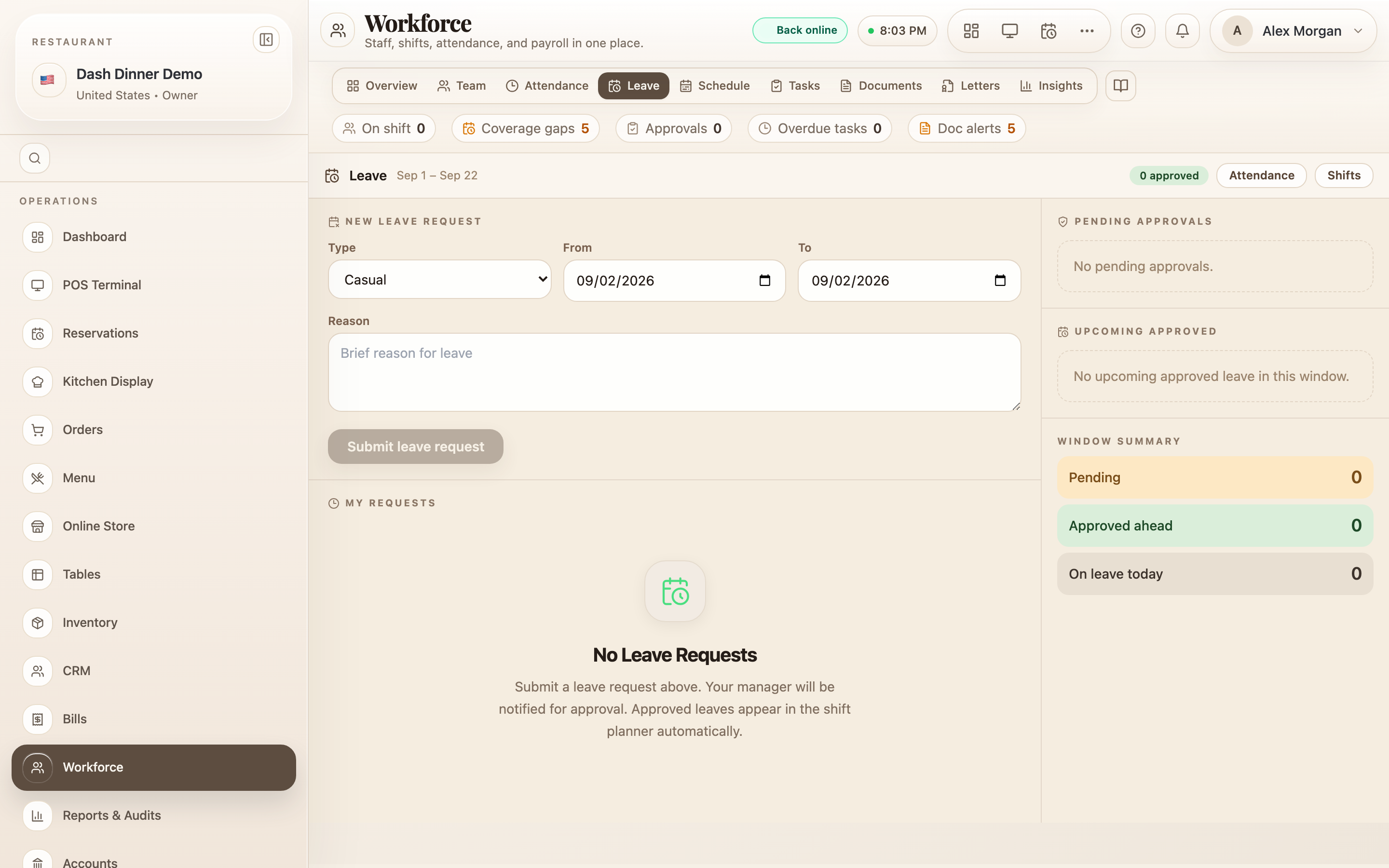
Request leave (staff)
Under New leave request:
- Choose a Type — Sick, Casual, Unpaid, or Planned absence.
- Set the From and To dates.
- Add a short Reason.
- Choose Submit leave request. Your manager is notified.
You can cancel your own request while it's still Pending.
Approve leave (manager)
Under Pending approvals, review each request, optionally add a Manager note, and choose Approve or Reject. Approved leave is blocked out on the shift planner right away.
Requests show as Pending, Approved, or rejected.
Worked example
A server needs Friday off. Priya opens Leave, sets Type to Planned absence, From and To to Friday, adds a reason, and chooses Submit leave request. Her manager sees it under Pending approvals and taps Approve — Friday is now blocked for Priya on the planner.
Tips & things to watch
- ✅ Approve promptly — approved leave immediately protects the person from being rostered.
- ✅ Use the manager note to record why something was declined.
- ⚠️ Cancel only works while Pending — once approved, ask a manager to adjust it.