Offer & HR letters
What it's for
Letters lets you create professional HR letters — offer letters, appointment letters, and more — send them to candidates or staff, and track them right through to a signed acceptance. Candidates accept online with a digital signature; no printing and posting.
Offer Letters is a paid feature (Pro plan). If it's locked, you'll see an upgrade prompt.
Where to find it
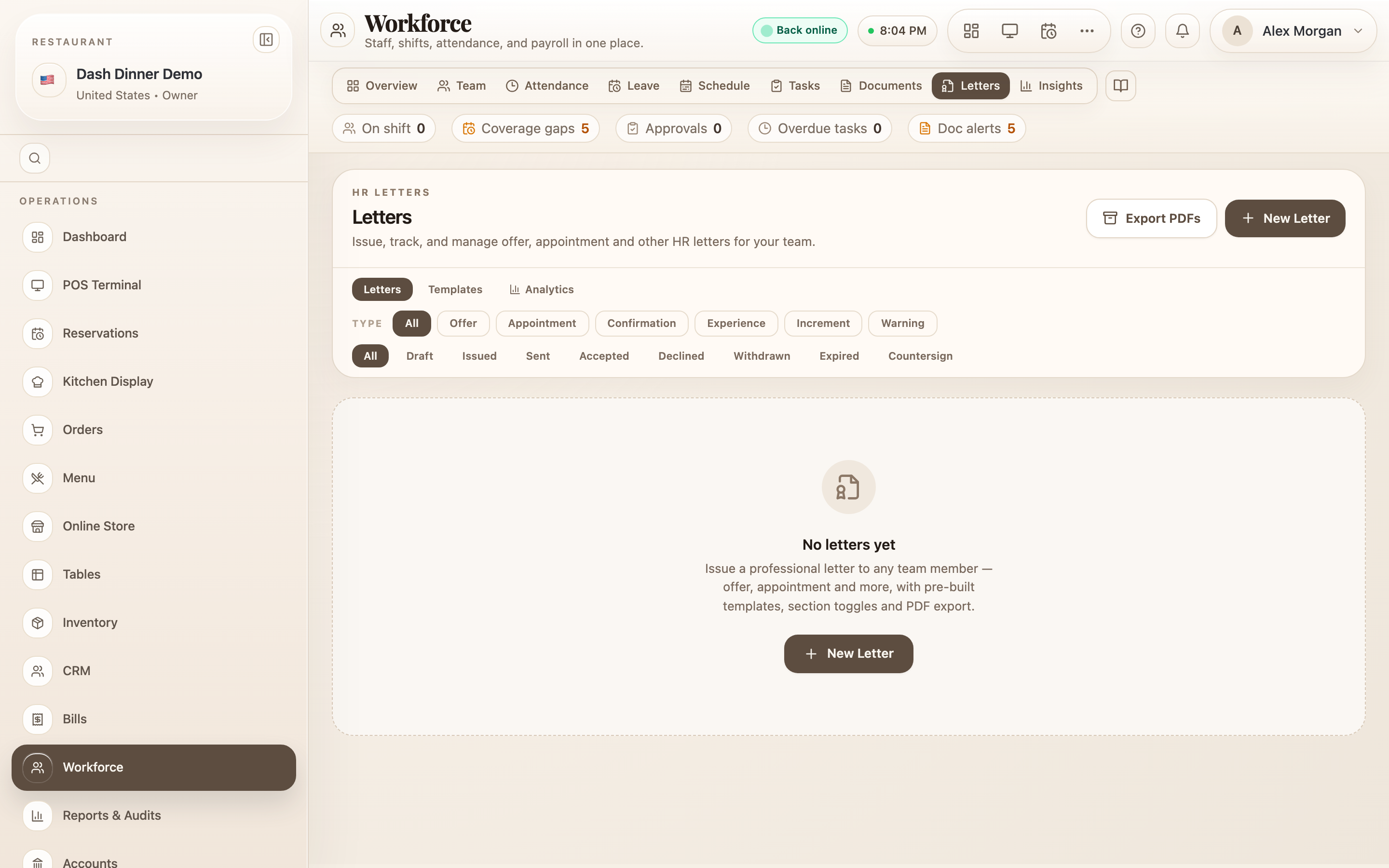
Open Workforce and choose the Letters tab (headed HR Letters). It has three views: Letters (issue and track), Templates, and Analytics. Branding for the emails is set separately under Settings → Offer Letters.
Create and issue a letter
Choose New Letter to open the builder — a seven-step wizard: Staff & Type → Template → Sections → Content → Letterhead → Signature → Preview.
- Staff & Type — pick the Letter Type, then enter the Candidate Name, Role / Designation, and Email (for a candidate) or choose a Staff Member. Set the Employment Type, Offer Date, and who it's Issued By.
- Template & Sections — start from a template and toggle which sections to include.
- Content — fill the details. Pay and dates live here as section fields: Date of Joining, Gross Monthly Salary, Annual CTC, and Offer Valid Until (the acceptance deadline).
- Letterhead & Signature — your business details and the issuer's signature.
- Preview — a completeness banner tells you if anything's missing. When it's ready, choose Issue Letter, then Send via Email (or Generate PDF / Mark Sent).
How a candidate accepts
The candidate gets an email with a private link to a mobile-friendly acceptance page: Review → Decide → Sign. They review the offer, choose Accept this Offer or Decline this Offer, and sign digitally to confirm. You see the result back on the card straight away.
The link works until the Offer Valid Until date, then expires. Use Email Letter to resend or nudge a candidate before then.
Track letters
Each letter shows a status — Draft, Issued, Sent, Accepted, Declined, Withdrawn, or Expired — and a tracking panel with view counts and when it was opened, accepted, or declined. Filter the list by type and status. From a card you can View, get the PDF, Email Letter, Amend an accepted offer, or — best of all — Onboard to staff to turn an accepted candidate into a team member.
Templates
On the Templates view you get read-only
Platform Templates (choose Fork to customise a copy) and your own
Custom Templates. Create one with New Template:
name it, set the employment type, and build its sections. Section content supports
double-brace placeholders like {{ROLE_TITLE}}, {{JOINING_DATE}}, and {{ANNUAL_CTC}}, which
fill in automatically from each letter's details.
Analytics
The Analytics view shows Total Issued, Acceptance Rate, Avg Response Time, and Expired / Pending, with charts for letters by status, top declined roles, and weekly activity.
Branding the emails
Under Settings → Offer Letters, set your Brand color, Logo URL, Sender name, Reply-to email, and an Email footer. Use Send Test Email to preview, then Save Settings. (The letterhead and signature themselves are set inside the builder.)
Worked example
Hire a new head chef. Choose New Letter, set the type to Offer Letter, enter the candidate's name, role Head Chef, and email. Pick a template, fill in the Date of Joining, Gross Monthly Salary, and an Offer Valid Until date, add your signature, and Issue Letter → Send via Email. When they accept and sign, choose Onboard to staff to add them to Workforce.
Tips & things to watch
- ✅ Set an Offer Valid Until date — it creates urgency and the link expires cleanly.
- ✅ Onboard from an accepted letter — it carries the details into a staff record for you.
- ⚠️ Fill every required field before issuing — the Preview step blocks issuing until it's complete.
- ⚠️ Branding lives in Settings, but the letterhead and signature are set in the builder.