Staff tasks
What it's for
Tasks turn your routines — opening checks, closing clean-down, prep lists — into assignments you can hand to staff and track to completion. You build a reusable task catalogue, then assign tasks to one or many people.
Where to find it
In the Workforce hub, choose the Tasks tab. Your reusable tasks live under Task Catalog.
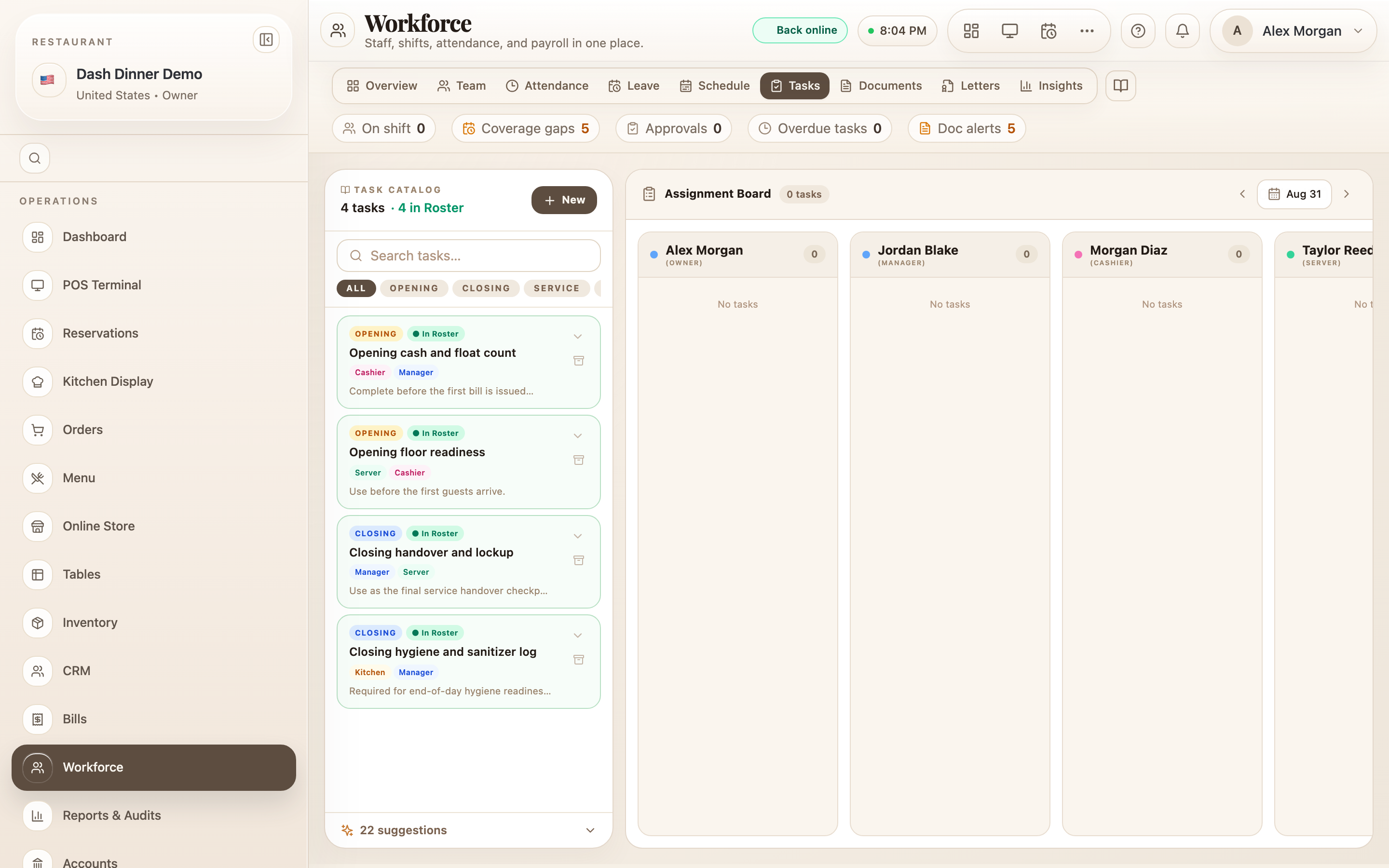
Create a task
- In the create box, type the task under What needs to be done?.
- Optionally add checklist steps, one per line.
- Choose Create task.
- Open the task to add detail — a Due by time, an estimated duration, and step-by-step guidance — then Save details.
Stuck for ideas? The page suggests common opening, closing, service, cleaning, and prep tasks — click one to pre-fill the form.
Assign a task
- Click a task in the catalogue to open Assign task(s).
- Pick the date it's for.
- Tick the staff to give it to — one or many. The footer confirms how many staff and tasks you're assigning.
- Confirm to assign it to everyone selected at once.
Tracking completion
Assigned tasks move through Pending → Done → Verified, and anything not done in time is flagged Missed. A managers' panel collects missed tasks so nothing slips quietly.
Worked example
Nightly close-down. Create a task "Close the kitchen" with checklist steps (turn off burners, wipe surfaces, lock the walk-in), set a Due by of 23:30, and Save details. Each evening, open it, pick tonight's date, tick the two closing staff, and assign. As they finish, it moves to Done, and you can mark it Verified.
Tips & things to watch
- ✅ Build the catalogue once, then assign the same routines every day in seconds.
- ✅ Bulk-assign the shared jobs to the whole shift in one go.
- ⚠️ Watch the Missed panel — it's your signal that a routine isn't getting done on time.